Photo to MP4 · practical guide
Burning Bridges AI Tutorial: From Photo to Post
A phone-friendly walkthrough for choosing a photo, buying a video credit, making your clip and adding music before you post. Start with the real example below so you know what this tool creates.
Preview the sample before buying. Generation uses a paid video credit.
Check the real input and result first
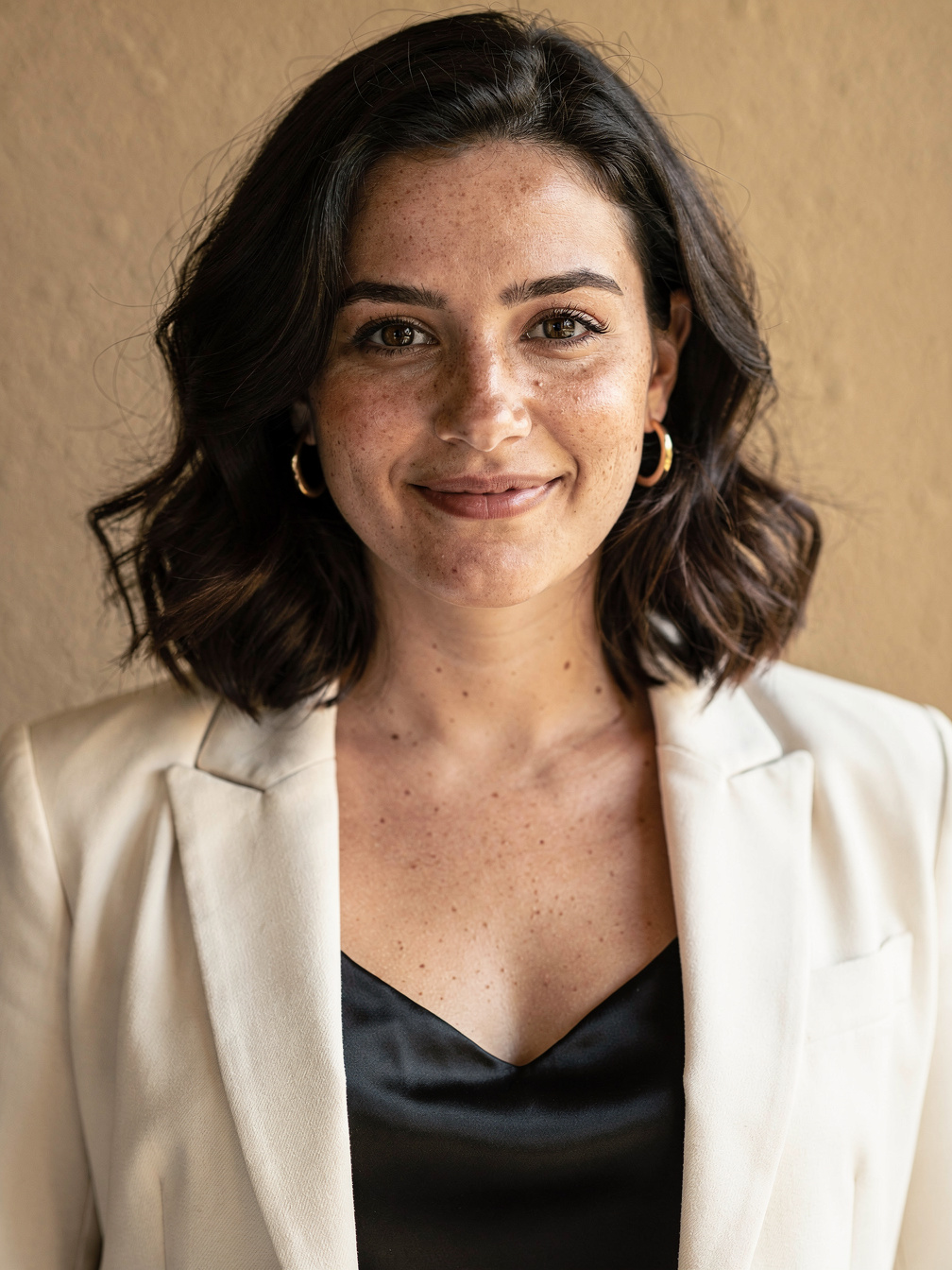
Input portrait
Generated result
Prepare a photo that gives the face room
Choose one clear subject
Use one photo with a visible face, even lighting and enough of the head and shoulders in frame. A straight-on or gently angled portrait is easier to assess than a distant group photo. Choose a picture you have permission to use.
Remove avoidable obstacles
Avoid heavy blur, a hand across the face, dark sunglasses and a tight crop across the forehead. The effect adds a hand-over-the-eyes motion, so a clear starting face helps. Preview the selected image before paying; there is no prompt box or model selector.
Make the video on your phone
Open the generator and select your picture
Go to the Burning Bridges AI video generator and add your image in the photo slot. Sign in with the account you want to use for the purchase and the finished video. Keep that same account when you return from checkout.
Buy a video pack
Choose one video for $3.99 or the 3-Video Pack for $9.99. These are one-off purchases. Payment buys video credits; it does not start a render. After checkout, return to the studio and wait for your balance to update before pressing the make button.
Press make after the credit appears
Check your photo, then start the render yourself. The scene is fixed: a party setting with a hand-over-eyes scan. The output is one 15-second 720p 9:16 MP4 with an original beat and crowd sound. Completion time varies; leave the job in progress rather than starting another.
Find the finished clip in My Creations
Open My Creations using the account that bought the pack. When the result is ready, preview it and use the download control. Save the MP4 to your device before opening your social app. Private results are retained for 6 days, so keep a local copy if you want to use it later.
Add music and line up the gesture
Upload the saved MP4
Create a new video in your posting app and choose the downloaded file. This output is already vertical. Watch the clip once and locate the moment when the hand reaches the forehead; use that visual moment as your editing reference.
Choose an available in-app sound
If you want the Drake track, search for Burning Bridges in the sound library available to your account. The generated file does not contain that recording. Sound choices can differ by account and region. If the track is unavailable, keep the generated beat or select another permitted sound.
Preview both tracks together
Move the selected sound excerpt to align with the gesture, then listen before posting. Lower the generated clip’s volume if the two tracks compete. Check the face, hands, framing and caption in the final preview; AI movement can vary and a second render is a separate credit.
If something does not look right
Paid, but the balance has not appeared
Check that you returned to the same signed-in account. Give payment confirmation time to arrive and check again before buying another pack. Contact support with the order reference if it remains unresolved; do not include your card details.
The job is still processing or under review
Check My Creations for the existing job. A submission with an uncertain result is held for review to avoid charging for a duplicate render. Do not repeatedly start new jobs. A definite generation failure returns the video credit; an unresolved job needs reconciliation first.
The download is not in the phone gallery
Look in your browser’s Downloads list or your device’s Files app. Open the saved MP4 there and use the device’s save or share action if needed. A browser download does not always appear in the photo gallery automatically.
Tutorial questions
Do I need a CapCut template?
No. This tool generates a new party clip from a photo. A video editor can trim a finished clip or add captions, but a template is not required to generate it here.
Will checkout automatically make my video?
No. Return to the studio, confirm the credit balance, then press the make button yourself.
Can I change the prompt or request an exact gesture?
The scene and settings are fixed. There is no custom prompt or gesture control, and the precise movement can vary between results.